Add Voiceover to PowerPoint—and Update One Slide at a Time
On Windows, choose Insert → Audio → Record Audio to narrate one slide. For AI voiceover, create a clip and insert it through Insert → Audio. Set playback and slide timing, then test the presentation or exported video.
- Written by
- Shaad Sufi
- Published
- Reading time
- 9 min read
Your slides are ready. Help people follow them without you.
A colleague opens your presentation after the meeting. The bullet points are there, but your explanation isn’t. Add voiceover to PowerPoint so they can hear what matters, at their own pace.
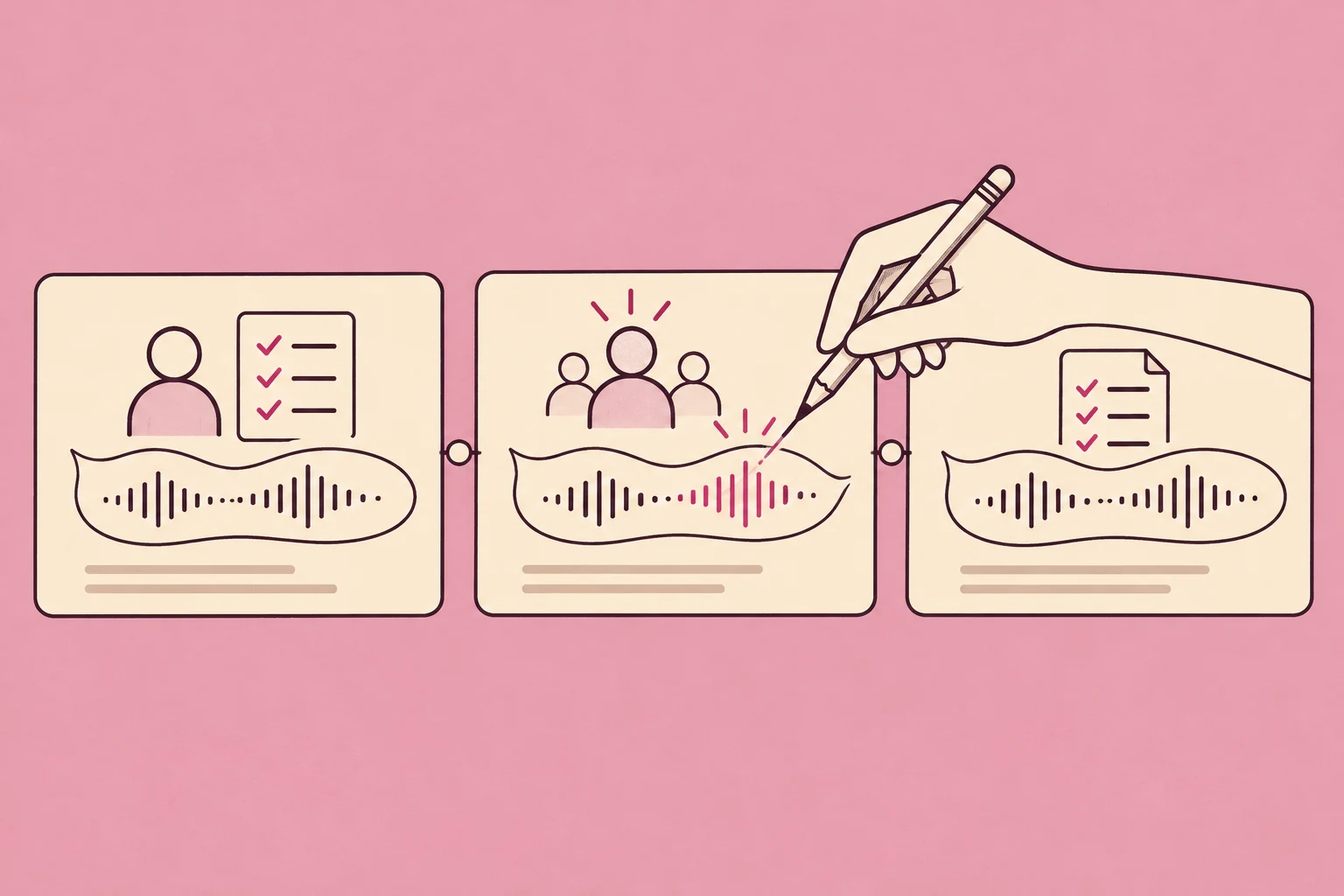
Start with one slide. Record your own voice in PowerPoint, or create an AI narration clip and insert it. Keep one clip per slide so a changed instruction doesn’t mean rebuilding the whole presentation.
One instruction changed. Keep the rest of the presentation.
Here is the result to aim for. In this three-slide onboarding example, a new employee must now choose a cost centre before submitting an expense claim. Compare the original and revised slide. Can you hear the new instruction—and see it long enough to follow?
Listen for “the cost centre for your team.” The slide holds long enough to finish that instruction.
Read the narration
Attach your receipt. Check the total and currency. Choose an expense category, then select the cost centre for your team.
Record yourself, use AI, or record the whole presentation?
Both native recording and separate AI clips let you update one slide. Choose based on how you want to produce the voice:
| You need | Record in PowerPoint | AI clips + PowerPoint | Screen recording |
|---|---|---|---|
| Your own performance | ✓ Your voice | Depends on voice setup | ✓ Your voice |
| No microphone session | × | ✓ | × For live narration |
| Revise one slide | Re-record that slide | Replace that clip | Edit the recording |
| Keep slides editable | ✓ In the deck | ✓ In the deck | Keep the source deck |
Choose native recording for your delivery and gestures. Choose AI clips for script-led revisions without another microphone take. A screen recording is useful when the lesson moves between slides and a live app. Microsoft’s recording guide covers the native route; Clipchamp’s presentation guide demonstrates the video-editor route.
Let the slide show the idea. Let the voice explain it.
Reading every bullet aloud gives your audience the same information twice. Write the sentence that helps them understand what to do with the slide.
| On the slide | In the voiceover |
|---|---|
| Receipt · Total · Category · Cost centre | “Attach your receipt. Check the total and currency. Choose an expense category, then select the cost centre for your team.” |
Keep the script in that slide’s notes and keep its audio separately named. 02-claim-details-v2.mp3 is easier to replace than final-final.mp3. Use the exact labels people will see. Explain unfamiliar abbreviations before asking a narrator to pronounce them.
Our training voiceover guide goes deeper on delivery and pronunciation. Here, the job is to make the narrated deck work from the first slide to the last.
Give the voice a brief. Then change only what needs changing.
In Wubble, start with the slide’s approved words, the listener and the tone. Keep the voice choice and brief consistent across the deck. For a revision, identify the slide and say both what to change and what to keep.
You can also open Wubble’s Create tab in the PowerPoint add-in. Generate and review the audio there, then save the approved clip for insertion. The example conversation below follows the original and updated narration you heard above.
Wubble · Slide 2 · example direction

See Wubble’s PowerPoint add-in
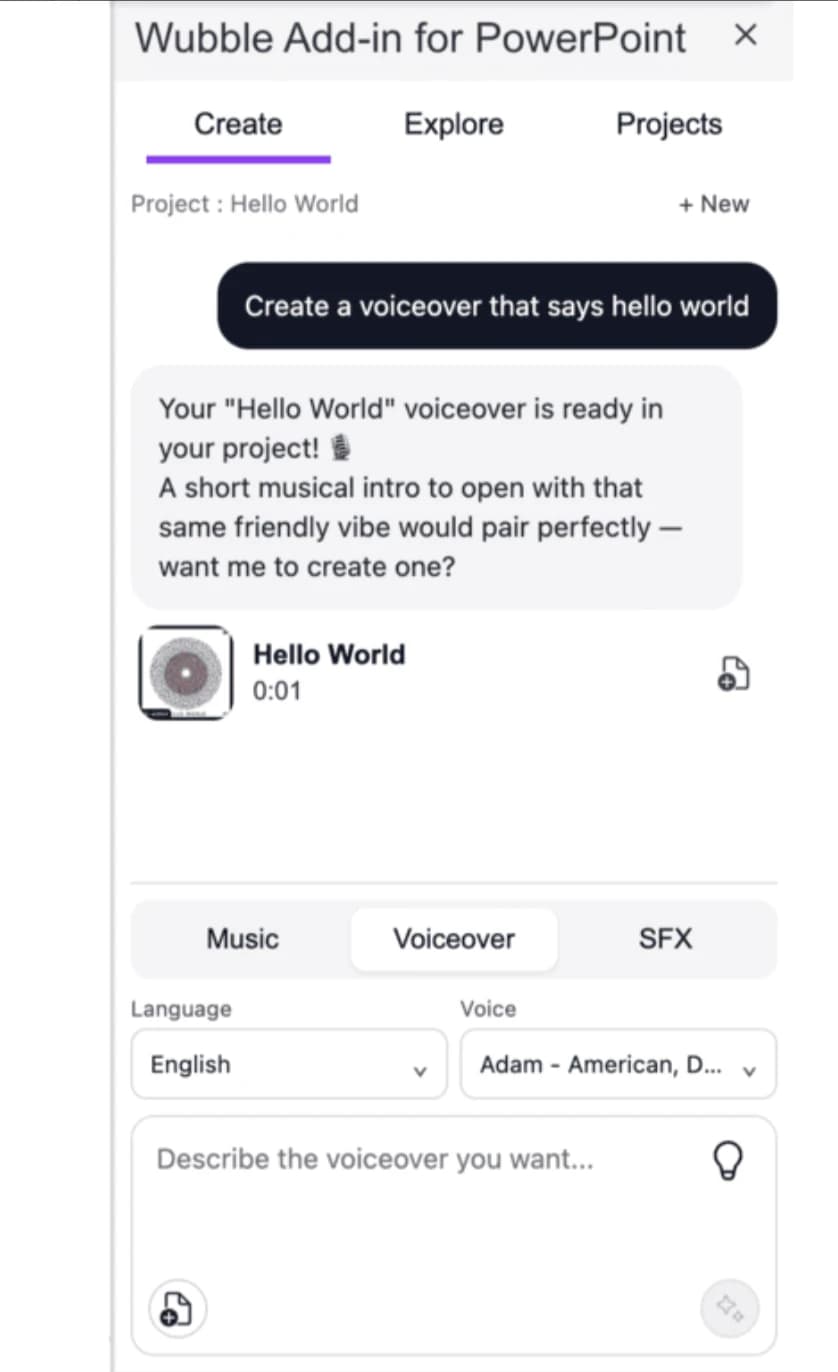
Existing product example. Open Create to brief the audio; use the approved audio file for the slide’s narration. Get the add-in on Microsoft Marketplace →
Put the narration on the right slide
A Wubble audio share card is a reference to the asset, not an embedded narration track. Insert the actual audio file so it plays with the slide. Choose your PowerPoint version below.
- 1Select the slide
Insert → Audio → Audio on My PC. Choose its approved clip.
- 2Choose playback
On Playback, set Start to Automatically for a self-running slide.
- 3Keep it local
Leave Play Across Slides and Loop Until Stopped off for slide-specific narration.
For a viewer-led deck, choose a click-based Start setting instead. Use Hide During Show only when a visible audio control is not needed.
Need to see the menus? Microsoft’s guide below includes a short video demonstration of adding and recording audio.
- 1Select the slide
Insert → Audio → Audio from File. Choose the approved clip.
- 2Set its start
Select the audio, then Playback → Start → Automatically for a self-running slide.
- 3Test your delivery
Listen in Slide Show. If exporting a video, test one imported-audio slide first; see the Mac export note below.
Menu labels can vary by edition. For native narration, use Record or Slide Show → Record Slide Show.
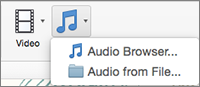
Choose Audio from File to insert the approved clip on this slide.
Microsoft’s guide · Used with permission from Microsoft. Menu appearance varies by edition.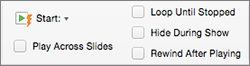
Start controls when the clip begins. Leave Play Across Slides and Loop off for separate narration on each slide.
Microsoft’s guide · Used with permission from Microsoft. Menu appearance varies by edition.- 1Open the deck
On the selected slide, choose Insert → Audio.
- 2Choose the file
Select the prepared audio from your computer and insert it.
- 3Preview the slide
Test its playback and start behaviour in Slide Show before sharing.
Microsoft lists MP3, WAV, M4A, AAC and OGA, up to 16 MB per file. Its guide does not support recording a slide show in the browser; prepare the voice separately.
Prefer your own voice? Record just that slide.
Just need a voice clip? Use Insert → Audio.
- On Windows, select the slide and choose Insert → Audio → Record Audio.
- Name the clip and press Record. Speak the explanation you want that slide to add.
- Press Stop, then Play to check the recording. When it sounds right, choose OK to add it.
- Choose when it starts. Select the audio icon, then Playback → Start → Automatically for a self-running slide. Use a click-based setting when the viewer should control it.
This records an audio clip; set the slide’s advance time separately. Microsoft’s audio guide shows the route by edition.
Want to capture your delivery and timing? Use Record.
Put speaking points in the slide’s notes. Open Record, choose your microphone and turn the camera off if you only need voice. Classic desktop editions use Slide Show → Record Slide Show. Start from the current slide, record, then preview.
Wait until the slide transition finishes before speaking: PowerPoint does not record narration during the transition. For a retake, use the current-slide option so you keep the other slides’ narration.
PowerPoint for the web does not support recording a slide show in Microsoft’s current guide. Use desktop PowerPoint for this route, or insert prepared audio in the browser.

Use Record for narration with slide timings. For a simple audio clip, use Insert → Audio → Record Audio instead.
Microsoft’s guide · Used with permission from Microsoft. Menu appearance varies by edition.A longer sentence needs a longer slide
The revised middle clip is 8.40 seconds; the old one was 6.72 seconds. Keeping the old slide timing would rush the new instruction or move on before it ends.
For a self-running deck, set Transitions → After to the actual clip length plus a useful pause. Duration controls the transition effect, not how long the audience sees the slide. Set each slide individually when the narration lengths differ. For a viewer-controlled deck, let the viewer advance instead. In either case, preview from the previous slide to catch a doubled voice, abrupt join or clipped ending.
Advance at 8.90 seconds in this example: the whole clip, then half a second to breathe.
Measured source clips. The pause is an editorial choice, not a universal target. Start the clip automatically before relying on this timing.

After sets the advance time; Duration sets the transition effect. Set After for each clip. Do not use Apply To All when slide lengths differ, or add a transition sound for narration.
Microsoft’s guide · Used with permission from Microsoft. Menu appearance varies by edition.Send a deck—or a video that plays on its own?
| Deliverable | Choose it when… | Check |
|---|---|---|
| PowerPoint deck | Someone needs to edit or move between slides | Open it on the receiving device and play the audio |
| MP4 video | People need one continuous presentation | Play the exported file through the final word |
| People need a readable handout | Provide a transcript; it is not the narrated version |
Windows: export the timed presentation
Save the editable deck. Choose File → Export → Create a Video, select the resolution and use recorded timings and narrations where applicable, then create an MP4. Do not leave every slide at the default duration if the narration lengths differ. Microsoft’s video-export instructions show the settings.
Mac: test imported audio before exporting the whole deck
Choose File → Export and a video format in a supported edition. Microsoft distinguishes recorded slide-show narration from other embedded media and warns that the latter may not play in the exported video. Test one slide with your imported clip first. If it is missing, assemble slide images and approved clips in a video editor, or use a tested Windows export workflow. Read Microsoft’s Mac export notes.
Browser: plan the video handoff
You can insert prepared audio in PowerPoint for the web. For the desktop export controls above, open the deck in desktop PowerPoint. Alternatively, finish the slides and narration in a video editor. Check the final video rather than assuming browser playback proves the export.
Make captions part of delivery. Review the words and timing against the final narration. Do not assume live presentation subtitles become captions in your MP4. For deck media, see Microsoft’s caption support by version; for a video, add reviewed captions in the editor or destination player.

Some Mac editions also offer Export as Video on Record. Check imported-audio support before relying on the export; listen to the saved file.
Microsoft’s guide · Used with permission from Microsoft. Menu appearance varies by edition.No voice, two voices, or the wrong ending?
| Problem | First thing to check |
|---|---|
| I can’t find Record | Use desktop PowerPoint. In classic Windows editions, try File → Options → Customize Ribbon → Recording. For one audio clip, use Insert → Audio → Record Audio. |
| PowerPoint can’t use my microphone | Allow microphone access in Windows or macOS privacy settings, then make a short test recording. |
| My recording is silent or distant | In the recording view’s microphone menu, select the mic you are actually speaking into. Check its mute switch and input level. |
| Audio waits for a click | Check its Start setting. Choose Automatically for a self-running slide. |
| Two narrators at once | Remove the old clip from that slide. Check that another clip is not playing across slides. |
| The sentence is cut off | Compare the clip length with the slide’s advance time. Recheck after every revision. |
| Only a share card appears | Insert the audio file; the card itself is not a playable narration track. |
| Silent exported video on Mac | Check the imported-media limitation above. Test a different export route with one slide. |
| The clip plays here, but not for a colleague | Check that you inserted a file, not just a link, and test their PowerPoint version and playback settings. |
Where to allow microphone access
Windows 11: Settings → Privacy & security → Microphone. Enable microphone access and access for desktop apps. Microsoft’s permission steps.
Mac: System Settings → Privacy & Security → Microphone. Allow Microsoft PowerPoint. Apple’s permission steps.
Once the voice is clear, consider whether the deck needs music at all. An opening or closing cue may be enough. If you add a bed, keep it beneath the narration and avoid lyrics competing with instructions.
PowerPoint voiceover: quick answers
Can I add voiceover to PowerPoint for free?
Recording and inserting audio are built-in features of supported PowerPoint editions; they do not require a separate voiceover tool. Access to PowerPoint itself depends on your account or licence. AI voice services and add-ins have their own plans; check the applicable plan before generating your narration.
Can I change the narration on just one slide?
Yes. Re-record that slide, or replace its imported clip. Update the slide duration and captions if the words or length changed. Keep the other clips unchanged.
Can AI read my PowerPoint speaker notes automatically?
This guide uses a deliberate script-per-slide workflow. Paste the approved notes into your voice tool and review the result. It does not assume an add-in reads the whole deck, assigns narration automatically or exports a finished movie.
How do I make the narration sound less like a list?
Write short spoken sentences, make one point at a time, and leave room to look at the slide. Ask for a specific delivery—such as a calm colleague explaining a task—then listen for names, numbers and interface labels.
Should narration play across all slides?
For independently revisable slide clips, keep each on its own slide. One continuous track can suit background music, but makes later narration changes harder to isolate.
Can I make versions in other languages?
Create a separate reviewed script and narration set for each language. Check translated slide text, names and timings together. A translated sentence may need a different slide duration; see our dubbing and language-review guide.
Sources and example notes
- Microsoft: Record narration and slide timings.
- Microsoft: Insert audio on Windows, Mac and the web.
- Microsoft: Turn a presentation into a video and Mac export limitations.
- Wubble on Microsoft Marketplace and our add-in introduction.
About the listening example
Northstar is a fictional company. These illustrated slides reuse the prepared narration from our training-video guide, assembled into a deck-style video. The conversation illustrates the direction; it is not a recording of a live Wubble session or a PowerPoint export. Only the middle narration changes. First and last voice files are reused unchanged. The illustrated timing gives each clip a half-second tail. Source audio durations are measured, not production-time savings.
Instructions checked against Microsoft documentation on 14 October 2026. Menus vary by edition and rollout. The add-in screenshot is an existing Wubble product example. Microsoft PowerPoint interface screenshots are reproduced unchanged from Microsoft’s documentation, with edition labels; they are not captures from our example deck. A full authenticated add-in-to-PowerPoint export was not recorded for this guide.