Love the Track, Not Every Layer? Make Music Stems Work for Your Video
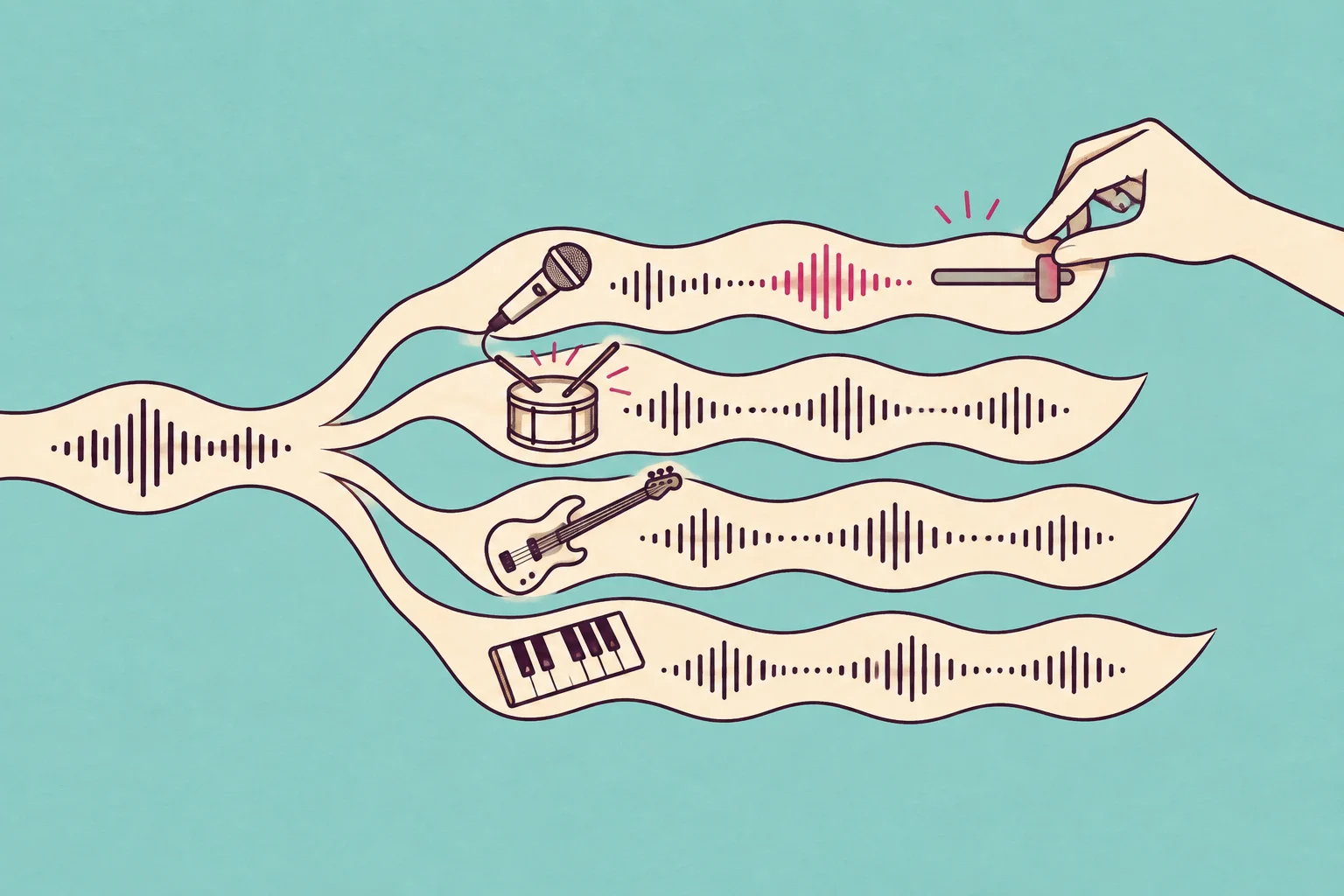
Music stems split a song into editable groups, such as vocals, drums and bass. Use them when you like the track but need to change one part—not turn everything down.
- Written by
- Shaad Sufi
- Published
- Reading time
- 9 min read
Keep the groove. Move the vocal out of the way.
The song fits your video. The beat matches the cuts. Then the singer starts—and competes with your narration. Turn everything down and the energy disappears too.
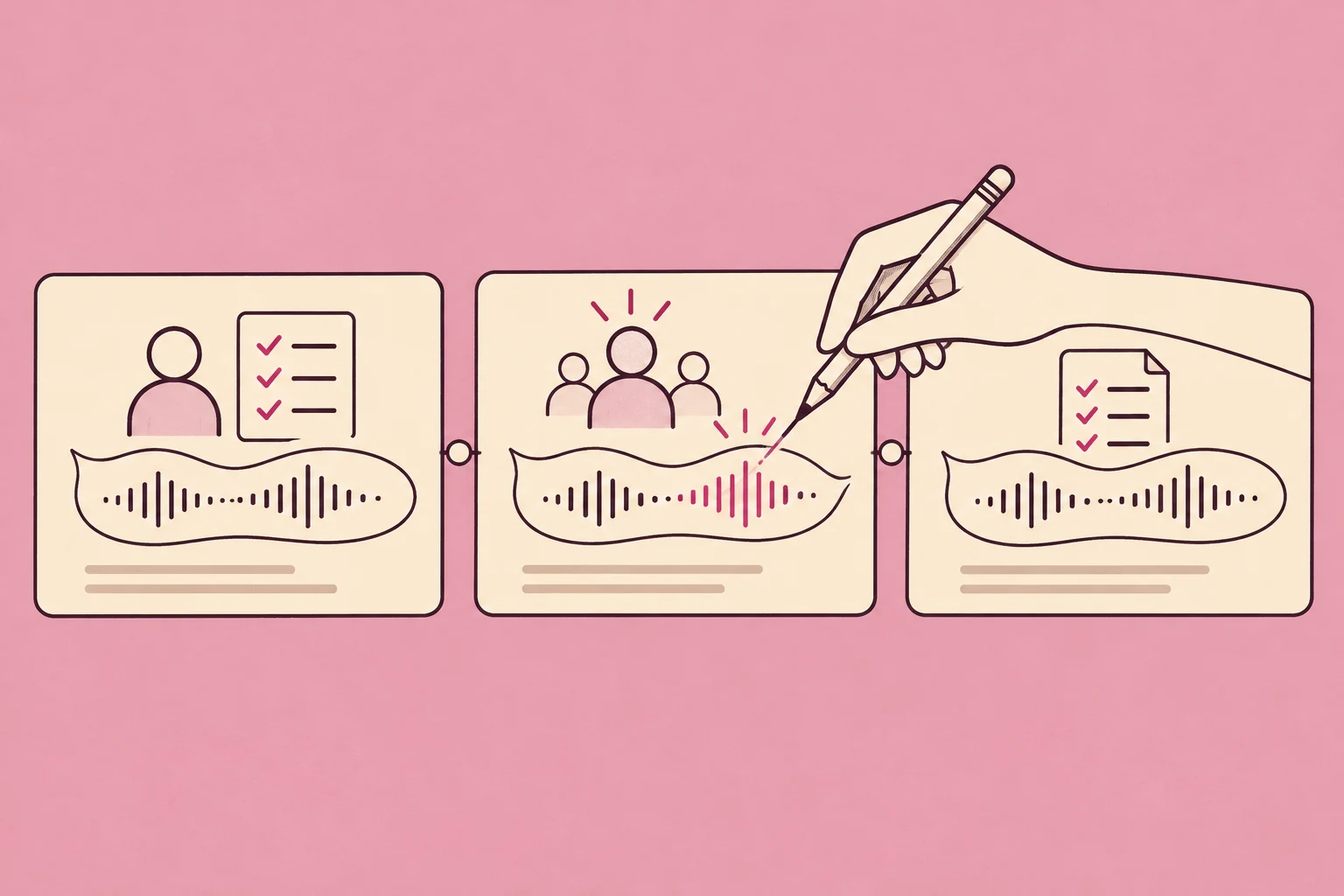
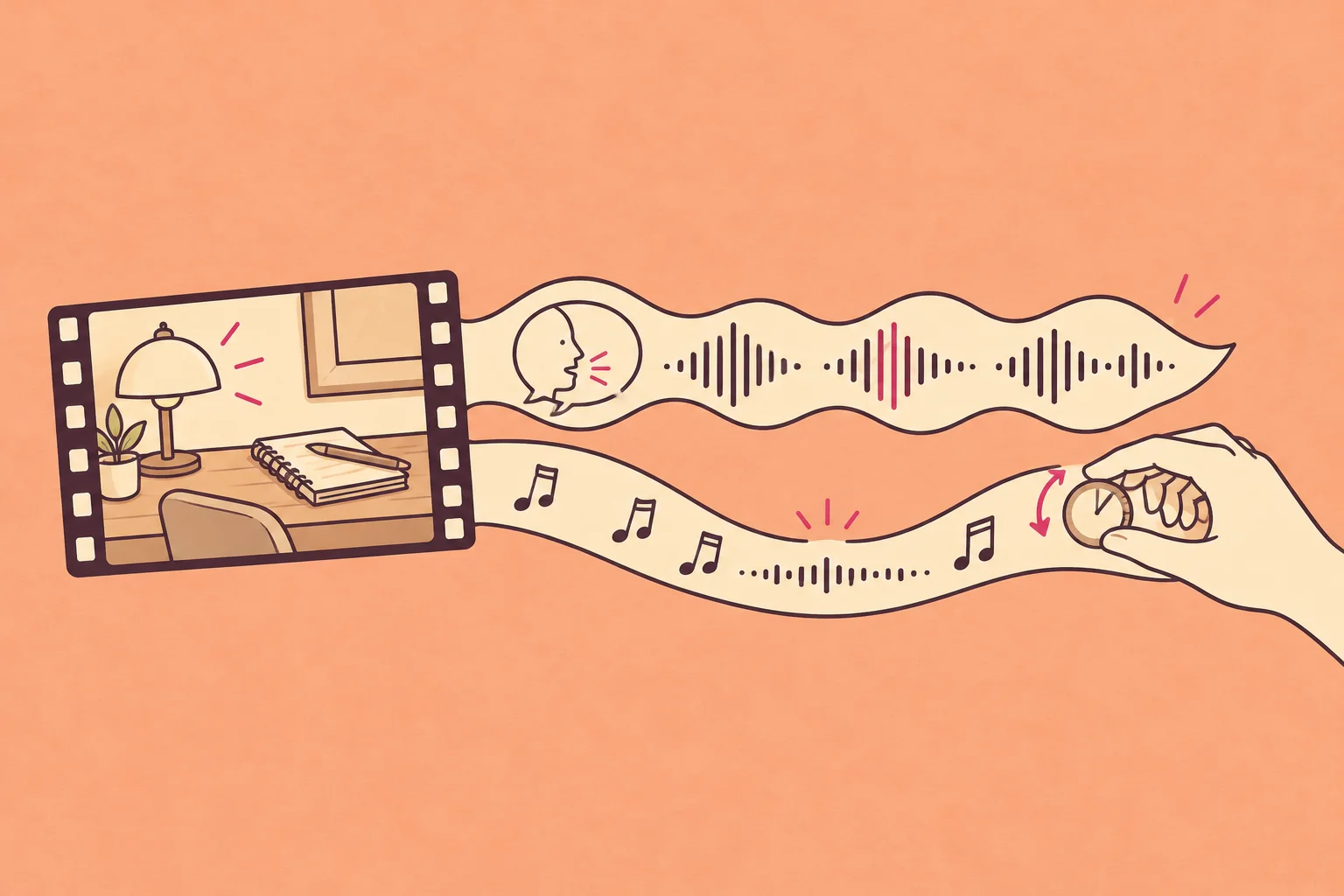
Music stems let you change the troublesome layer while keeping the parts you like. Watch this 15-second product film. Switch between “Before” and “After” at the same moment: can you follow the voice and still feel the groove?
The vocal stem drops out under speech and the instruments ease back 3 dB. After the final line, the full arrangement returns. Listen from 7 seconds.
Switch versions at the same moment. Sound on to judge the balance.
Transcript and example notes
“Soft textures. A considered shape. A moment that is entirely yours. Make room for the music.”
Illustrative film using existing Wubble demonstration assets. The stem edits and video mixes were prepared for this guide; the conversation below illustrates how to brief those same changes. It is not a recording of a live chat session. Picture and narration are identical in all versions.
What are music stems? Listen to the pieces.
Music stems are audio files containing a part or group of parts from a song, such as vocals, drums, bass or other instruments. You can adjust each group separately. A drum stem can contain the whole kit; it doesn’t necessarily give you an individual snare recording.
Keeping versions of your stems? Our lossless audio guide and WBL research explain what storage compression preserves—and how related versions can share information.
The ISM’s definition and examples make that distinction useful: a stem is a manageable group, rather than every original recording. There’s no universal number of stems. The four below are the groups used in this example.
Follow the sung line. Can you hear traces of anything else?
The same 12 seconds in every preview. Waveforms show each file’s shape on its own scale.
Compare just the music layers
Follow the beat again. The instruments keep their level while the vocal moves back.
Music only, so you can judge each layer without the narrator. All four versions use the same starting level.
Full mix, stems or multitracks: which do you need?
If the whole song is too loud, a volume change may be all you need. If one group is wrong, use stems. If you need to fix an individual recording inside a group, ask for multitracks.
| You need to… | Full mix | Stems | Individual tracks |
|---|---|---|---|
| Lower the whole song | ✓ | ✓ | ✓ |
| Lower vocals separately | × | ✓Vocal stem | ✓Vocal tracks |
| Change only the snare | × | Usually no | ✓If separate |
| Files to manage | One mix | A few groups | Individual recordings |
Multitracks may include raw or processed recordings; stems usually preserve a group’s existing sound. iZotope’s engineer-led guide explains the handoff in more depth. Ask what’s in the files, rather than relying on the folder name.
Have the session—or just the song?
Original stems are exported from a production session. AI-separated stems are estimated from an already mixed recording. They can serve the same editing task, but they aren’t the same source material.
| What you have | Best starting point | Check first |
|---|---|---|
| The producer or session | Request grouped exports | Names, effects and shared start time |
| A library track | Look for supplied stems | Track availability and licence |
| Only a mixed recording | Try AI stem separation | Bleed and watery or metallic sounds |
| No suitable music yet | Create a track for the brief | Arrangement, then separation quality |
Some libraries provide stems alongside tracks; Artlist’s help guide, for example, shows where to find and audition them. If you only have a finished file, separation gives you editable estimates. It does not recover the original recording session.
Make the music follow the story
A product reveal needs a different balance from the explanation before it. Keep a recognisable musical thread, then let the arrangement grow when the picture earns it.
In our headphone film, the last spoken line ends at 8.33 seconds. The full arrangement returns from 8.6 to 9.4 seconds. That small gap lets the message land before the music takes the lead. Here is the arrangement you just heard.
The voice ends at 8.33s. The music rises from 8.6–9.4s, then fades over the final 0.65s. These are the actual edit points in the finished example.
From “almost right” to a usable soundtrack in Wubble
Keep the same film and song through the whole conversation. First identify the competing layer; then ask for a precise change. A useful revision says what changes, what stays and when it happens.
In Wubble, open Stems on the music card to separate a track. Use solo to identify the sung vocal, then listen to it with the other parts. The example direction below follows the three mixes at the top of this article.
Wubble · Headphone film · example direction

Keep every layer on the same clock
Request clearly named WAV stems with the same start, end and sample rate. Keep the silence before a part’s first note. Agree on bit depth and whether reverb or delay is included.
Use the illustrated Premiere workflow below to finish this kind of edit. The exact same-start rule applies in other editors too. Do not play the full mix on top of its stems—or add an instrumental on top of the drum, bass and instrument groups it already contains.
Exporting from an original music session?
Route related tracks to buses and export the same time range. Preserve their balance instead of normalising each independently. Shared compression or limiting can mean the stems do not recreate the mastered mix exactly; iZotope explains the export details.
- Import. In Premiere’s Media Browser, find the stem files and choose Import. Drag each onto its own audio track. Put their file starts at the same time—even when a layer begins with silence.
- Keep the reference silent. Mute the full song while its stems play. Put narration on a separate track; keep its original timing.
- Shape the return. Expand the vocal track. Choose Show Keyframes → Track Keyframes → Volume. Add keyframes before and after the spoken section; lower the middle, then ramp back up. Repeat a smaller dip for the instruments if needed.
- Check the exported movie. Play the first line, the return after 8.6s and the final fade. Check that the voice is clear and the last note isn’t cut off.
Control names follow Adobe’s track-volume guide and audio import guide. The drawing shows this example’s arrangement. Adapt the timings to your own film.
When the edit sounds worse, check this first
| You hear | Try this |
|---|---|
| A ghost of the singer | Listen to the remaining instruments. Residual voice may be baked into them. |
| Watery cymbals or metallic tails | Try a better source or original stems. Don’t keep boosting the damaged layer. |
| A thinner song after muting | Reduce the part instead; full removal may expose separation artifacts. |
| Double hits or an unexpected jump | Check alignment and mute the full-mix reference. |
| Speech still gets lost | Lower the remaining music under the voice. Stem editing doesn’t replace balancing. |
Check the dense chorus and the quiet gaps, not just the easiest passage. Then listen on headphones and your phone at a comfortable volume. Our music-to-video guide covers the final balance and export; the sound design guide helps when the rest of the scene also needs attention.
Music stems: quick answers
Are stems the same as an instrumental?
No. An instrumental is a mix without the lead vocal. Stems give you separate groups within a song. An instrumental plus a vocal is one way to make a two-part delivery, but it won’t let you adjust drums and bass separately.
Can I get stems from any song?
A separator can attempt to split a supported recording, but results vary. Dense arrangements, distortion and shared reverb can be difficult to isolate. If clean original stems exist, ask for those first.
Are music stems royalty-free?
Stems inherit the usage conditions of their source. Separating a commercial recording doesn’t grant permission to use it. Wubble’s subscriber licence covers specified synchronised uses without additional royalties to Wubble, subject to its terms. It doesn’t grant ownership or unrestricted resale of standalone stems.
WAV or MP3?
Use WAV for an editing handoff when available; it avoids another lossy encode. MP3 is convenient for previews. Converting an MP3 to WAV doesn’t restore detail already lost.
Can my team automate stem separation?
Wubble’s stem-separation API reference describes the request and returned outputs for development workflows. Keep source permissions, file alignment and a listening review in the pipeline; an API result alone isn’t a finished mix.
Sources and listening notes
- ISM: What are stems in music production? — definitions, grouped exports and listening examples.
- iZotope: Stems and multitracks — handoffs, export methods and shared processing.
- Universal Music for Creators: Using stems — shaping music around a video.
- Artlist: Using stems — finding supplied stems and checking their licence.
- Wubble: Stem-separation API and subscriber licence.
Sources checked 14 October 2026. The narrated film uses the same picture, voice and source music in all three versions, with a common output gain. The first revision lowers the vocal stem by 18 dB under speech. The finished mix mutes that stem and lowers the instruments by 3 dB during the spoken passage, then restores them. The separate music-only comparison uses a 12 dB reduction. These are example settings, not universal mixing targets; no independent loudness normalisation was applied across versions.