Make Training Videos Easier to Follow With AI Voiceover
- Written by
- Shaad Sufi
- Published
- Reading time
- 12 min read
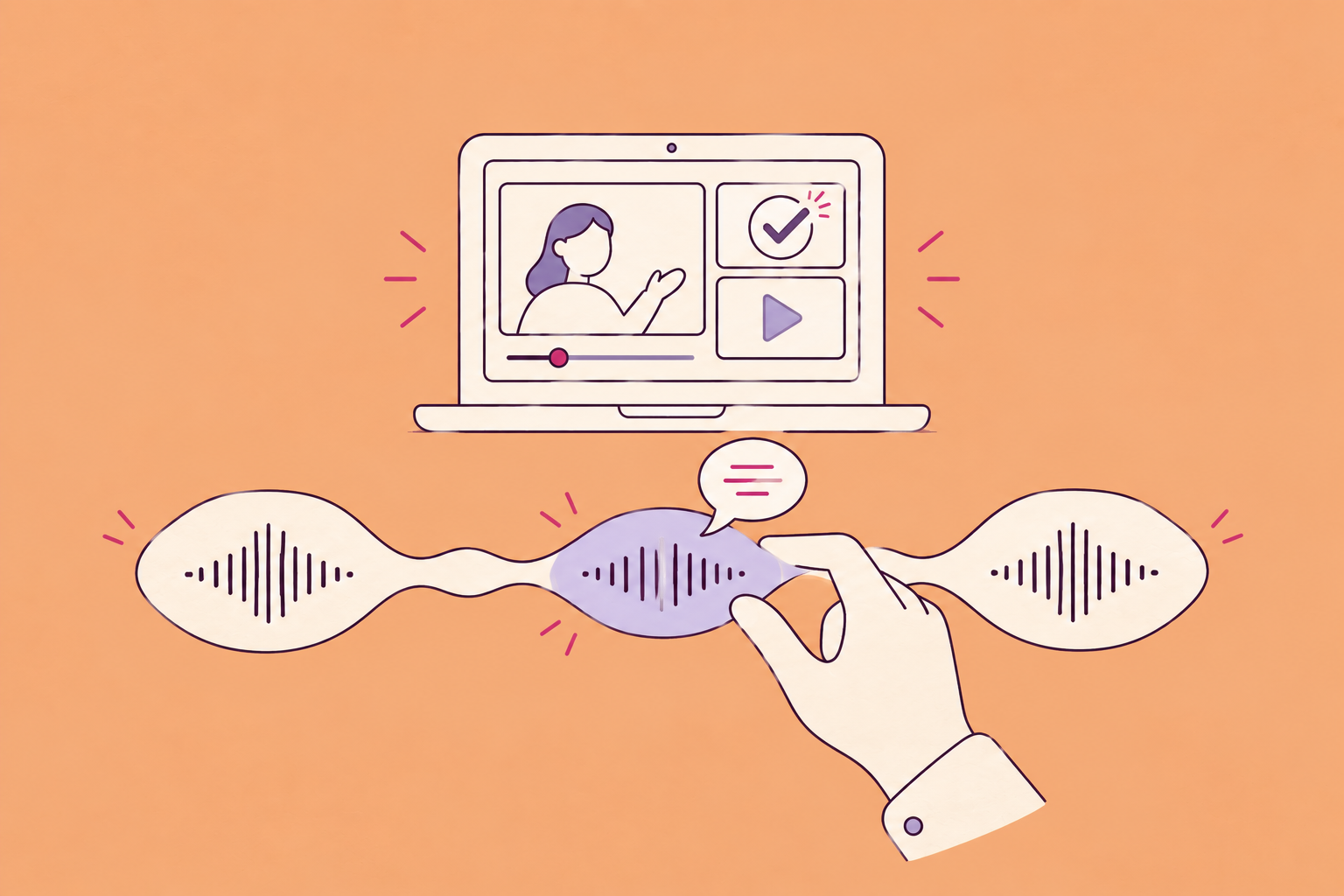
A lesson they can follow. A recording you can update.
The training video is nearly ready. Then someone changes a button name. You record the line again, but the new take sounds different—and now the screen moves on before the instruction ends.
AI voiceover for training videos turns your script into editable narration. The goal is simple: help someone finish the task, and make the next correction less work.
Watch this 22-second expense-claim lesson. Then follow the changes you can apply to your own training video.
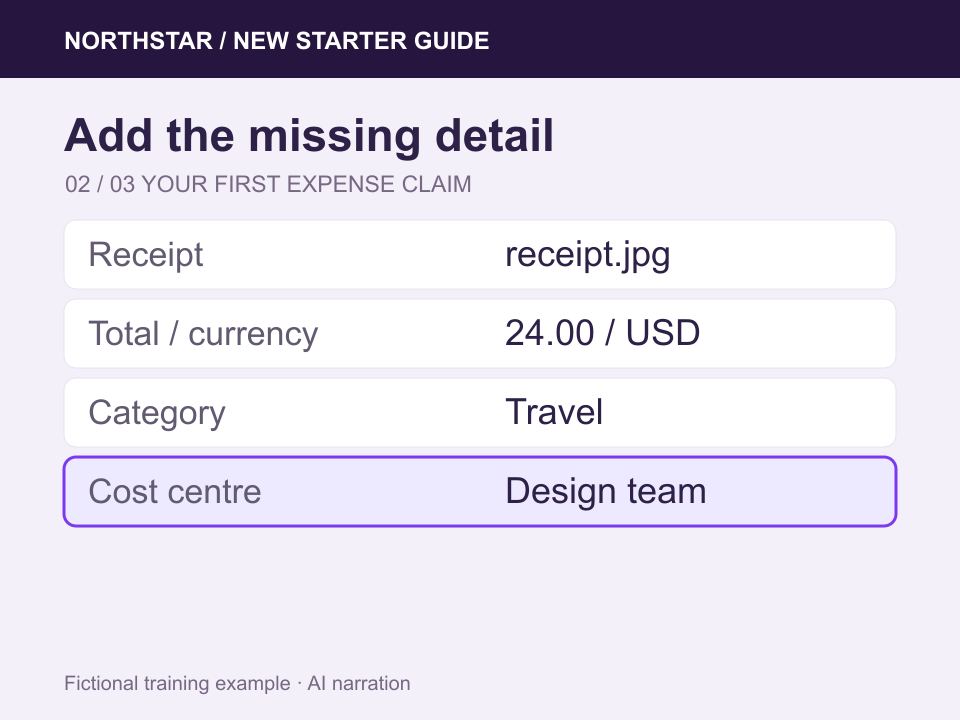
After one watch: what must you choose before submitting?
An expense category and your team’s cost centre. If you missed either, replay the middle instruction. For your own lesson, ask a new colleague to complete the task without coaching and note where they stop.
Prepared Northstar example; illustrative conversations. This is a short timing exercise, not a full employee course.
How the examples were made
Northstar is fictional. Speech was generated with ElevenLabs and assembled for this guide; the music is locally synthesized. The conversations are not recordings of a live Wubble session. The separate Wubble tutorial shows its product workflow. Spanish is a draft for fluent review.
What are you starting with?
Choose the route that fits what you already have. The worked example below starts with a script and screen recording.
| You have | Start here | Finish by |
|---|---|---|
| A script | Write for the ear and direct a first take | Match the clips to your screens. |
| Slides or a silent video | Match one instruction to each visual action | Place narration in your presentation or video editor. |
| A trainer’s recording | Decide whether the noise or the words need fixing | Review the cleaned or replacement take in the lesson. |
Which tool fits your workflow?
| Your starting point | Consider | What to check |
|---|---|---|
| Existing video; audio needs work | Wubble | Conversational generation, edits and audio mixing. |
| Slides or a narration script | Murf | Pronunciation controls and your authoring-tool workflow. |
| A presenter-led training video | Colossyan | Avatar, voice and course-delivery requirements. |
| A course with assessments | Easygenerator | Narration inside the course and LMS publishing. |
Three practical checks before you commit
- Pronunciation: keep approved terms with the script, such as “ERP → E, R, P.” Automatic reuse across Wubble projects is not verified here; test it before relying on it.
- Revisions: keep separate source clips and review the replacement’s joins, duration and captions. See the revision example.
- Course delivery: your presentation or course tool handles slides, assessments, completion tracking and SCORM packaging. This guide does not demonstrate Wubble publishing to an LMS.
These products overlap. Audition your same paragraph and request the same correction. For a sensitive message or a performance needing live direction, recording a trainer or working with a voice actor can still be the right choice.
Compare current costs and free limits
Checked 6 October 2026 against provider pages. Audio production, avatar video and course authoring include different services; these are not comparable per-course production costs.
| Option | Published price / allowance | Check before choosing |
|---|---|---|
| Wubble Business | US$14.99 / member / month; 30 downloads / member / month | Online-use license. Confirm your training distribution and editing access. |
| Murf trial | Free; 10 minutes of voice generation | No downloads. Check paid pricing for export. |
| Colossyan Professional | US$59 / month on annual billing | Video platform; confirm included minutes and required exports. |
| Easygenerator Pro | US$1,499 / year; 1 author, 10 courses, 100 learners | EasyVideo is an add-on, not included in this base price. |
Wubble Free includes 3 total downloads with a personal-use license. Use it to audition; do not assume it covers workplace distribution. Compare permitted use, finished downloads and revision needs—not just the monthly number. Prices and plan terms can change.
1. Give the learner one job—not a policy to listen to
You’re preparing onboarding for Northstar, our fictional company. A new colleague needs to submit an expense claim without asking you to walk them through it. Keep that outcome in the brief.
Your first voiceover brief
Help a new employee submit an expense claim.
Sound like a calm colleague. Pause between actions and say the button names clearly.
Use the approved script and screen recording. Make a separate narration clip for each screen.
In Wubble, start with your script. Add a screen recording or image to explain the task, or a permitted audio reference to show the delivery you mean. Keep narration words separate from production instructions.
First fix the words
The highlighted phrases below show how formal wording becomes direct instructions. Listen to both versions. Which lets you remember the next action?
Why conversational writing is worth testing
There is research behind conversational writing. In three experiments by Mayer and colleagues, students taught with conversational narration performed better when applying what they learned to new questions. Their recall scores did not significantly improve. The study used short science lessons and human narration; it does not prove that an AI voice will improve your course.
The practical takeaway: write as if you are helping one colleague. Keep required technical terms, then explain them. For safety or compliance training, have the subject-matter expert approve the meaning before you simplify it.
Prior to submission of an expense claim, users are required to attach supporting receipt documentation, verify the total and currency, and ensure that the appropriate expense category and departmental cost centre have been selected.
The learner waits for the first action. Several actions share one sentence.
Ready to submit your expense claim?
First, attach your receipt.
Check the total and currency.
Next, choose the expense category and the cost centre for your team.
You’re ready to review your claim.
A direct opening, familiar words and a separate sentence for each instruction. The procedure stays the same.
Listen for the action words and the space between them. These are two separate takes using the same selected voice, with different scripts and delivery direction.
Wubble · Training lesson

See the workflow in Wubble
This is the published product tutorial. The Northstar lesson above is a separate prepared example, not a capture of this project being generated.
2. “Keep the words. Give me time to follow.”
The instructions are clearer, but the read still feels rushed. Keep the same script and selected voice; change the direction. That way you can hear what the slower delivery contributes.
Compare the 6.64-second first take with the 8.56-second guided take. Listen to the gap between checking the amount and choosing the category. Longer is useful only if that space helps the learner.
Adapt the direction to another kind of training
| Lesson | Direction to try |
|---|---|
| Onboarding | “Welcoming colleague, relaxed and clear.” |
| Software walkthrough | “One action at a time. Pause after button names.” |
| Safety instruction | “Calm and direct. Emphasize the required action.” |
| Customer-service scenario | “Patient customer; composed agent. Distinct voices.” |
Wubble · Training lesson
Attach your receipt. Check the total and currency. Choose an expense category, then select the cost centre for your team.
Attach your receipt. Check the total and currency. Choose an expense category, then select the cost centre for your team.
A term sounds wrong? Hear the ERP correction.
Northstar says ERP as three letters. These takes deliberately request a one-word sound and a letter-by-letter reading to illustrate the difference. Save the approved pronunciation with your script—for example, “ERP → E, R, P.” Keep the normal spelling in captions.
Wubble · Training lesson
Open the urp dashboard, then choose Expenses.
Open the E. R. P. dashboard, then choose Expenses.
3. The form changed. Replace the instruction, not the lesson.
Here’s why the finished lesson includes the cost centre: the updated form requires it. Compare the earlier middle clip, which mentions only the receipt, amount and category, with its replacement.
Keep the opening and ending files. Replace only the middle clip, then listen across both joins. The new instruction is 8.40 seconds instead of 6.72—so the picture needs adjusting too.
Wubble · Training lesson
Attach a clear photo of your receipt. Enter the total and currency, then choose the expense category.
Attach your receipt. Check the total and currency. Choose an expense category, then select the cost centre for your team.
4. Keep the right screen in view until the instruction ends
The new line is right. The edit isn’t: the form disappears while the narrator is still explaining the cost centre. Hold that screen longer instead of making the voice race.
Compare the videos around 14–16 seconds. The narration and captions are identical. Only the screen timing changes.
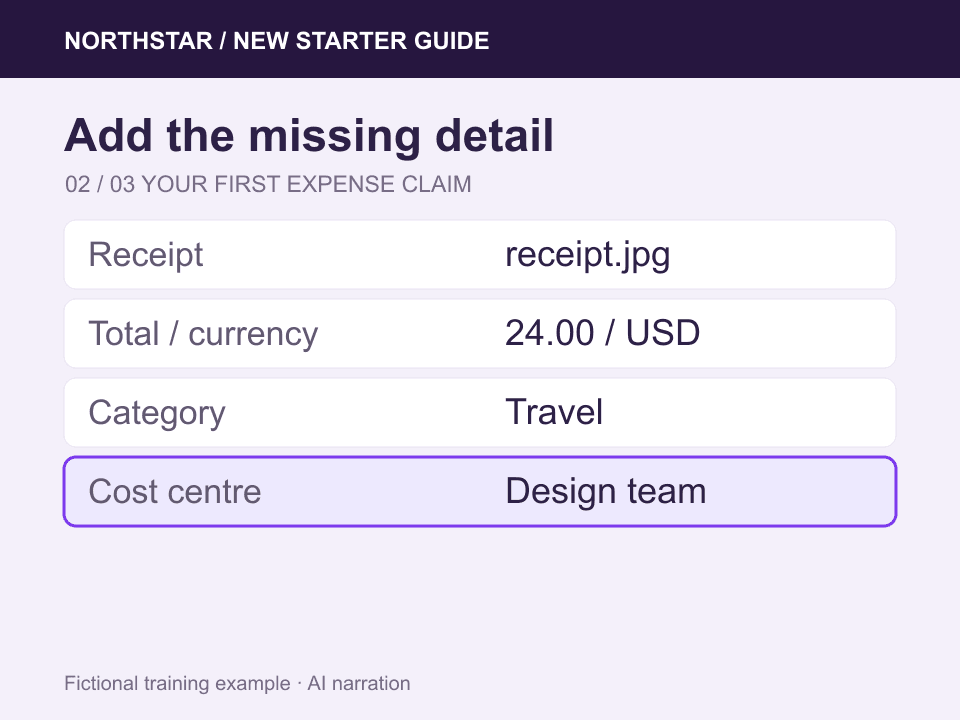
What you hear
“then select the cost centre for your team.”
What must stay visible: the Cost centre row. The first edit hides it before this instruction ends.
Same 12–18 second window below. Violet = form visible; pink = instruction continues after the form disappears.
Before · form disappears at 14.20s
Pink: the voice still names a field you can no longer see.
After · form stays until 15.88s
The field remains visible through “for your team.”
5. Make the words easy to hear inside the final mix
The lesson works. Now try adding music—and decide whether it helps. Play the mix, then switch on “Lower music under the voice.” Listen to the receipt and cost-centre instructions.
The switch lowers the music by about 8 dB while keeping the voice level fixed. Mute the music to compare with speech alone. You can also adjust, solo and seek through the prepared layers below.
Already recorded your trainer? Start with what you want to keep.
The words and delivery work, but there’s noise: try voice isolation and compare the cleaned result with the original. Cleanup cannot reliably recover every damaged recording.
The words or narrator need changing: generate a new read from the approved script, then check it against the picture. A different take may need different timing.
Hear the noisy/cleaned example in our ads guide. Voice isolation is a Speech API workflow. Speech-to-speech conversion is not currently available in Wubble API v1, according to its endpoint documentation; do not plan your training workflow around that operation.
Wubble · Training lesson · Audio editor
Swipe the timeline to inspect the tracks.
22-second narration and music mix
The switch lowers the music by about 8 dB during narration. Voice level stays fixed. Mute the music to compare with speech alone. This preview changes playback; it does not save an edit to your account.
Another team needs the lesson. Keep the meaning, check the timing.
Here is the same middle instruction in English and a Spanish draft. Both cover the receipt, amount, category and team cost centre. The English file is 8.40 seconds; the Spanish file is 9.20 seconds. Dropping it into the old slot would leave less room for the final words.
Have a fluent reviewer check meaning, terminology and delivery—including whether “centro de costes” suits your audience. Keep recognizable interface labels and review captions separately. A saved voice brief helps consistency; it does not make every language the same length.
Reuse the brief through an API or MCP workflow
Wubble’s API and MCP connection can bring supported audio operations into your team’s tools. A useful request is: “Use this slide map and approved voice brief. Generate separate narration files, preserve the slide names, and let me approve them before replacing any files.” Check which operations your connected client exposes. Keep course publication as a separate approval step.
Wubble offers royalty-free audio under its subscriber license, including listed internal-training uses. Match the plan to your distribution. Use permitted references and get permission before cloning a person’s voice.
Attach your receipt. Check the total and currency. Choose an expense category, then select the cost centre for your team.
Adjunta tu recibo. Comprueba el total y la moneda. Elige una categoría de gasto y, después, selecciona el centro de costes de tu equipo.
Listen for the four actions. Have a fluent reviewer check terminology and delivery before using the Spanish version.
Put your narration into the lesson and check it
Keep your narration in separate clips for each screen or slide. Save the approved script, voice direction and pronunciations alongside them so the next correction is easier.
Add the narration to PowerPoint
- Match one file to each slide. Give your approved clips clear names, such as
01-introduction.mp3and02-submit-claim.mp3. Match each clip to the slide it explains. - Insert the audio. In desktop PowerPoint, choose Insert → Audio → Audio on My PC on Windows, or Audio from File on Mac. Select that slide’s clip.
- Choose playback. Set Automatically for narrated playback or On Click for learner control. Keep each clip on its own slide; do not use Play Across Slides for these instructions.
- Rehearse and check the export. Review the timing before exporting a video. Watch the exported file, not just the presentation preview.
Microsoft’s audio guide documents the controls. Create captions for your finished video and check their timing after every narration change.
Check the lesson before sharing
- Sound on: listen for the difficult words and abrupt changes between clips.
- Sound off: check accurate, synchronized captions and that they leave the important fields visible. See W3C’s caption guidance.
- New learner: ask a colleague to attempt the task without coaching. Record where they get stuck.
- In the LMS: test video, captions and pause controls after upload. Your course tool handles assessments, completion tracking and SCORM packaging.
Find the fix, then try your own lesson
Something still sounds wrong?
| What you notice | Try this first |
|---|---|
| “I can’t keep up.” | Slow the direction; split or shorten a dense instruction. |
| “That acronym sounds wrong.” | Approve the pronunciation before generating the rest. |
| “The correction sounds pasted in.” | Replay the joins; match voice, delivery and level. |
| “Where did that field go?” | Hold the screen through the instruction. |
| “The music is distracting.” | Lower or mute it and compare. |
Can I make a training voiceover for free?
Free plans or trials can help you audition a short script. Downloads, script length and commercial rights may have separate limits. Check Wubble’s current plans before preparing a full course.
How do I make an AI training voice sound less robotic?
Write short spoken sentences, direct the delivery and check the difficult words. Give specific feedback such as “pause after the button name” rather than asking for a “more human” voice. Listen to the result against the video.
Can I use an existing video or slides?
Yes. Use the footage or slide sequence to plan the narration. Generate separate clips at natural scene boundaries, then place the audio in your video editor or presentation. Check the final timing rather than assuming a requested duration will be exact.
Can I replace one sentence?
Yes, when you retain editable source clips. Generate the corrected passage, keep the approved surrounding audio and check the transition, screen timing and captions. Regeneration may change duration or emphasis.
What matters more: a realistic voice or a good script?
You need both intelligible delivery and useful instructions. Start by checking whether a new learner can complete the task. A polished voice reading an unclear procedure will still leave them stuck.
Try one paragraph from a lesson your team actually uses. Make it clearer, hear it against the screen, then give one specific correction. That will tell you more than listening to another page of voice demos.