AI Game Sound Effects Generator: From First Cue to Playable World
- Written by
- Shaad Sufi
- Published
- Reading time
- 9 min read
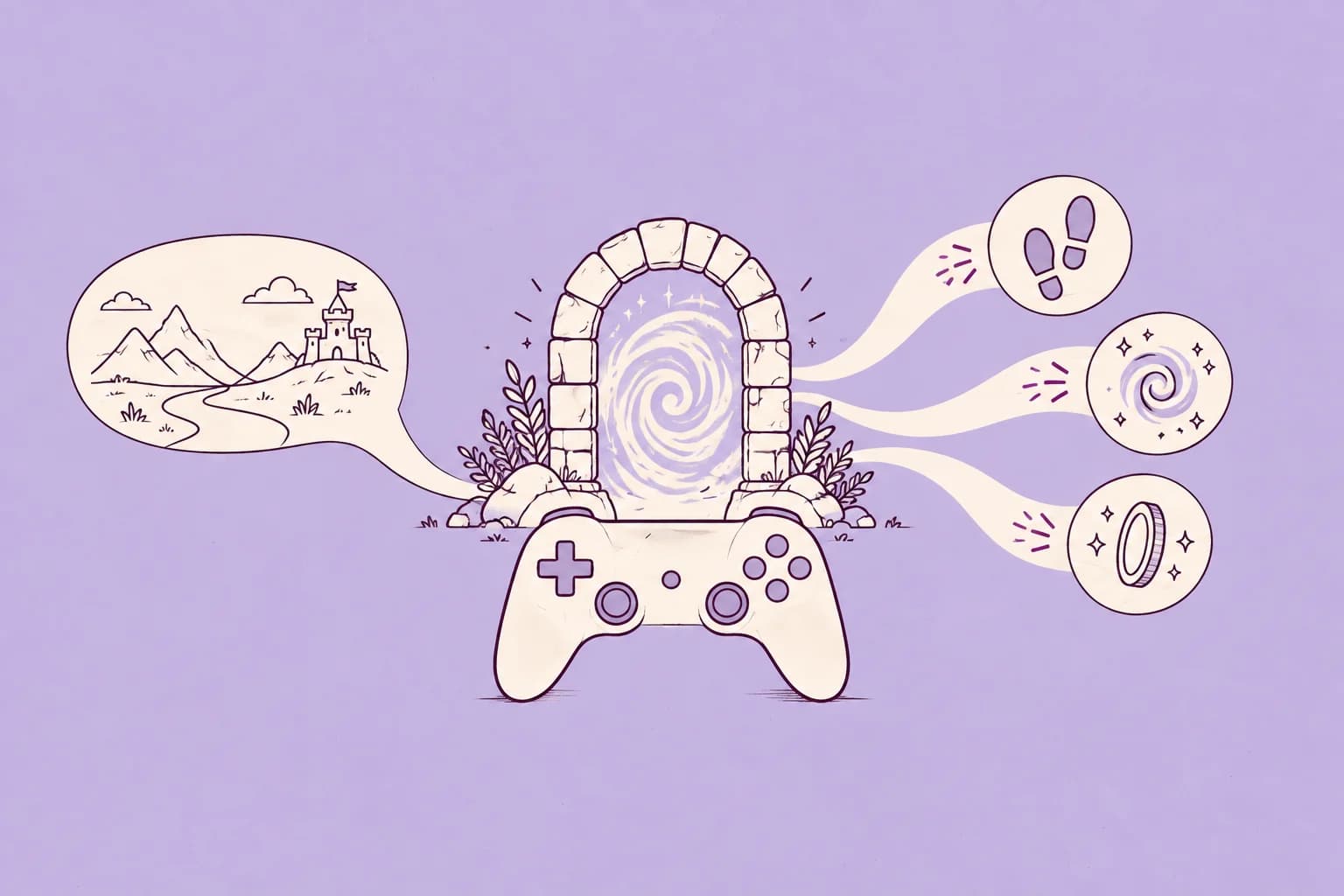
The gate opens. Your player should feel it.
The level works. The animation looks great. Tomorrow is playtest day. But the footsteps feel weightless, the gate slides in silence, and the portal could belong to any other game.
An AI game sound effects generator turns descriptions into audio assets: footsteps, impacts, interface cues and ambience. With Wubble, you can describe the sound, ask for changes through conversation and export the effects for your game. Unity or Roblox then handles when and where they play.
Let’s build the sound of one encounter: a scout approaches a metal gate, the mechanism opens, and a portal wakes up. Start with Atmosphere only, then play Action added. Hear what happens when the visible movements get their own sound.
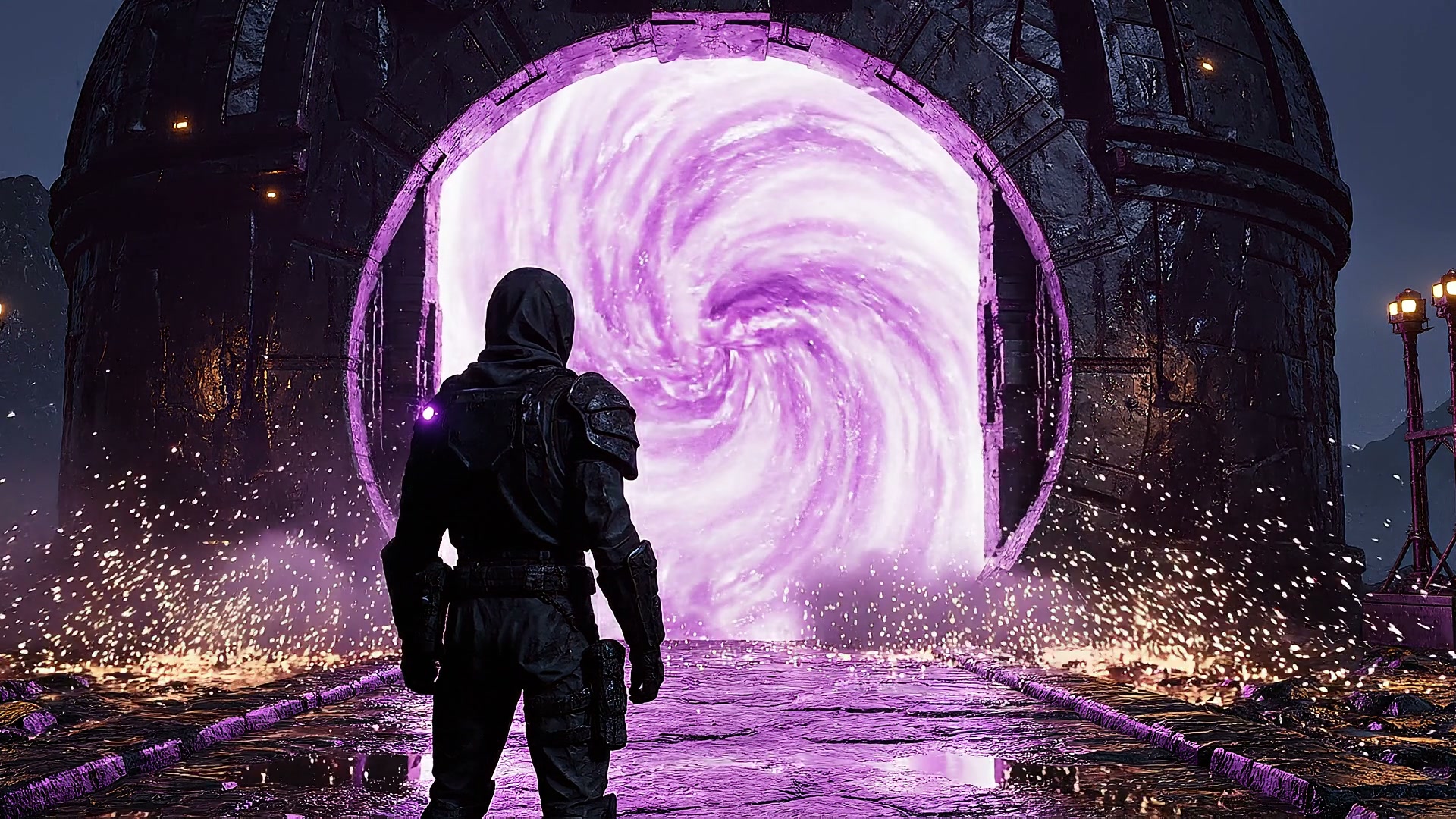
Give each sound a job.
Before generating, watch the scene once and name the events. The footstep says “I’m moving.” The gate says “this mechanism has weight.” The portal says “something powerful just changed.”
| Cue | Sound direction | Keep separate because… |
|---|---|---|
| Boot on stone | Dry contact, a little armor movement | Each step needs its own trigger |
| Gate slide | Latch, mechanical movement, end-stop | The mechanism can change speed |
| Portal activation | Charge, weight, electrical detail | You’ll want to rebalance the layers |
| Observatory air | Quiet wind and distant machinery | The world continues between actions |
A single cinematic mix is useful for reviewing a clip. Separate effects are useful for a playable game. The player can stop walking, turn around or trigger the portal twice. Your audio needs to follow.
Describe the material. Describe the movement. Press play.
Open Wubble sound effects and ask for one clear event. “One armored bootstep on stone. Dry contact, light leather creak. No music.” That gives you a more useful starting point than “epic game sounds.”
Hear the idea while it’s still fresh. Wubble’s published SFX guide lists this generation time. Listening, revisions and engine setup take additional time; actual generation time can vary.
When you already have a precise brief, you can start with a custom candidate instead of searching for a close-enough recording. Then direct the next change in the same conversation: “Less armor rattle. Keep the stone contact.” That is where Wubble can shorten the search-and-rework cycle.
Use source + action + texture + ending: a metal gate, sliding once, heavy mechanical grind, a firm closing clunk. Add duration and exclusions when they matter. For ambience, describe a sustained environment instead of a single hit.
Play the sounds below to inspect the ingredients. Switch collections to hear impact layers, environmental sound and UI feedback. Keep a shared material palette so your menu, reward and world feel like the same game.
Armored footstep
2s
Metal gate
3s
Portal ignition
4s
“The portal needs more weight.” Keep the good part.
The first review is encouraging. The gate reads. The footsteps fit. But the portal’s arrival needs more force.
Ask: “Keep the portal. Add a low impact and a short electrical crackle.” You are directing two jobs: body underneath, detail above. Keep them as separate assets so you can adjust either without losing the original sound.
Compare the two prepared scene mixes below. The warning and original action bed stay in place; the second mix adds impact and crackle. Listen for the portal’s extra weight and texture.
Now the companion has something important to say.
The portal lands. Then the companion speaks—and the scene gets busy. Turning everything up won’t solve this.
Continue the conversation: “Shorten the portal tail. Lower the music under the warning.” This version keeps the voice recording and added impact layers, fades the portal earlier and dips the music during the line.
Compare at the same listening volume. The goal is a readable moment: the player hears the event and understands the warning. Wubble’s Studio workflow brings picture and audio together for review; check your final timing in the playable build too.
A great first hit is only the beginning.
Now imagine the player sprinting across the room. The same footstep, repeated perfectly, soon feels mechanical. Ask for variations that keep the same boot, surface and perspective. Audition each one before adding it to the set.
For a room ambience, request a steady loop without a dramatic opening or ending. Listen across several repeats, then check the join in the engine. “Loopable” in a prompt is a request, not proof of a clean loop.
- Repeated triggers: does a rapid sequence become harsh or too loud?
- Clean edges: is there unwanted leading silence, a click or a cut-off decay?
- Player perspective: should this sound come from a world position or stay with the interface?
- Real devices: can you still hear the important cue on a phone speaker?
Keep that review small and practical. Fix the effects that carry the interaction first; polish the background around them.
Hand over a sound kit, not “final-final-v7”.
The encounter has its sound. Export the individual assets and keep the approved scene mix as a reference. A name such as gate_slide_heavy_01.wav tells your teammate much more than effect_27.wav.
WAV is a useful source master when available on your plan. Your engine’s import settings determine the playback format and compression. Keep the original, then test the version that ships. See Wubble’s export guide.
Preview the handoff below: select the encounter’s effects, choose a format and organize the folder. When your own kit is ready, export it from Studio.
Select Audio for Download
6 of 6 selected
Explore the controls here. Export and organize your own project in Wubble Studio.
Bring your AI sound effects into Unity.
- Import. Drag the exported WAV into Unity’s Project window, or use Assets → Import New Asset. Unity creates an AudioClip. Unity import instructions.
- Place it. Assign the clip to an AudioSource. Use 2D playback for a menu cue; choose 3D spatial blend for a gate that should be heard from its position. Play the cue from the relevant gameplay event. AudioSource reference.
- Tune for the build. Review mono/stereo, compression and load type in the clip’s import settings. Short frequent effects and long background beds can need different choices; profile memory and playback on the target device. AudioClip settings.
Trigger footsteps from actual contacts and the gate from its opening event. A timeline preview helps you judge the sound; the engine’s event logic makes it respond to the player.
Building in Roblox? Start with the asset permissions.
For Roblox sound effects, export a supported file and make sure you have the rights to upload and use it. Roblox currently accepts MP3, OGG, WAV and FLAC; its audio guide specifies a file under 20 MB, under 7 minutes and a sample rate no higher than 48 kHz. Use mono or stereo for this workflow. Roblox audio requirements.
- Upload. Import through Studio’s Asset Manager or Creator Dashboard and wait for moderation.
- Authorize. Grant the intended experience permission to use the private audio asset.
- Connect playback. Use the approved asset with an AudioPlayer and the appropriate output path: positional audio for a world object, non-positional audio for interface feedback. Roblox audio objects.
- Playtest. Check the published experience as well as your editor session. If a sound is silent, check its approval, permissions and playback wiring before generating another take.
Wubble supplies the audio assets. Import, moderation, spatialization, variations and gameplay triggers remain part of your Unity or Roblox setup; this tutorial does not require a Wubble engine plugin.
Make the sound yours. Make the release terms clear.
Generating from your brief gives you something you can shape around the world you are building. You can revisit a cue, make it drier or heavier, and preserve approved versions while the game evolves.
Wubble offers royalty-free audio under its licensing terms. Confirm the plan covers your commercial game, distribution and promotional uses. A royalty-free license is not a promise of exclusivity or permission to redistribute standalone sound packs. Keep a record of the applicable license with the approved assets.
For your next encounter, start with the interaction you want players to feel. Create your first game sound effect, or talk to us about a team pipeline. Developers planning asset generation in their own tools can explore the sound effects API.
Quick answers before your next build
What should I look for in an AI game sound effects generator?
Audible examples, control over the sound’s texture and duration, targeted revisions, suitable exports and clear commercial terms. Judge the result inside a scene and under repeated playback, not just in isolation.
Can I use Wubble sound effects in Unity and Roblox?
You can export audio for import into either engine. Choose a supported format and follow the engine’s settings and permissions. For Roblox, the asset must also pass moderation and be available to the intended experience.
How do I prompt AI for a game sound effect?
Name the source, action, material and ending. “One heavy metal gate sliding shut, low grind, firm clunk, no music” is a useful start. Refine one issue at a time after listening.
How long does Wubble take to generate a sound effect?
Wubble’s SFX guide lists 10–20 seconds for generation. Actual time can vary. Allow additional time to listen, revise, export and test the sound in your game.
Can AI create seamless ambience loops?
You can request looping ambience. Check the generated file’s boundaries and repeat it in your build; a loop request alone does not verify seamless playback.
Can I use generated effects in a commercial game?
Use them within the applicable license. Check game distribution, trailers and any redistribution requirements against your Wubble plan, and keep the rights record with the assets.
Sources checked 29 September 2026. Follow the linked official guides for current engine requirements.