Wubble comes to Adobe Express: Create audio through conversation
- Written by
- Shaad Sufi
- Published
- Reading time
- 6 min read
Give your design a sound
The colours are right. The headline lands. The animation has just enough movement. Then you press play, and something is missing: the sound.
That is the moment we built this for. Wubble is available as an Adobe Express add-on, bringing AI music, voiceovers and sound effects into the workspace where your design is taking shape. Describe what you want, listen to the result, and insert it into your project.
You can find Wubble in Adobe Express now. Here is what creating through conversation looks like, using a poster with a simple message: “Be authentic. Be bold. Be you.”
Start with the message
A bold design already tells you something about how it should sound. For this poster, a flat, formal delivery would feel out of place. The voice needs the confidence of the words on the canvas.
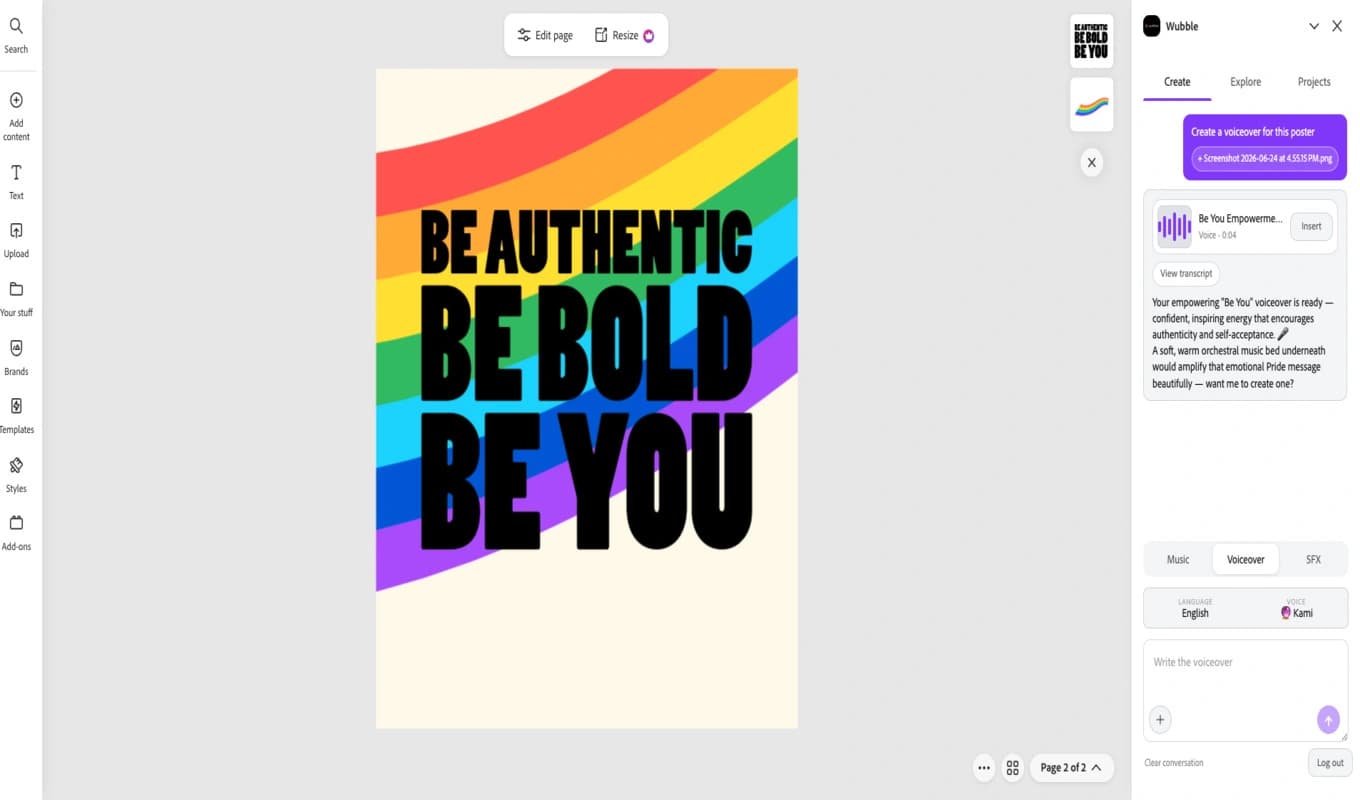
In the example below, the request is simply “Create a voiceover for this poster”, with an image of the design attached. Wubble returns a short voiceover and explains its direction: an inspiring delivery that matches the message of authenticity and self-acceptance.
The conversation stays beside the design. You can listen, consider whether the tone fits, and continue from there. You do not have to work out the entire soundtrack before making the first request.
Build the sound through conversation
Once the voice has a direction, the next decision becomes easier. What should sit underneath it?
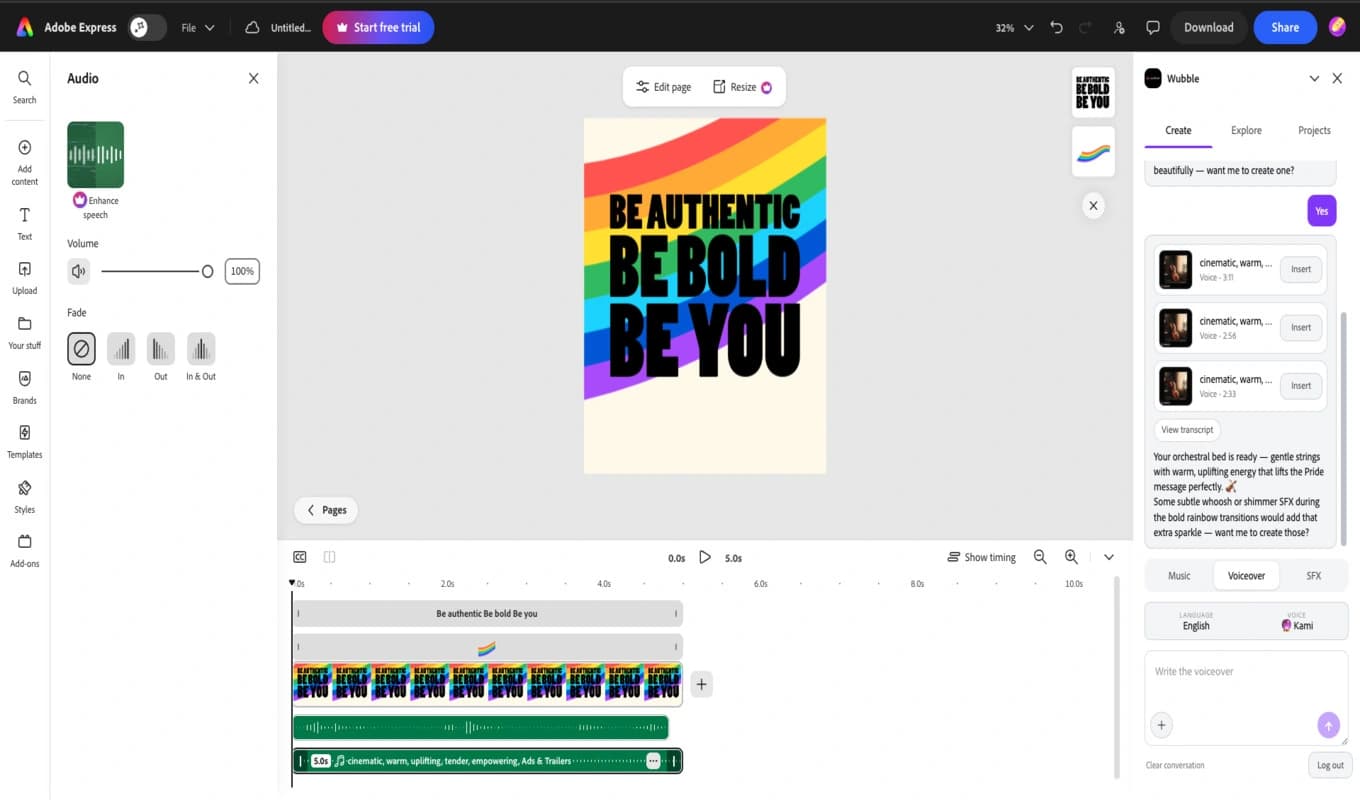
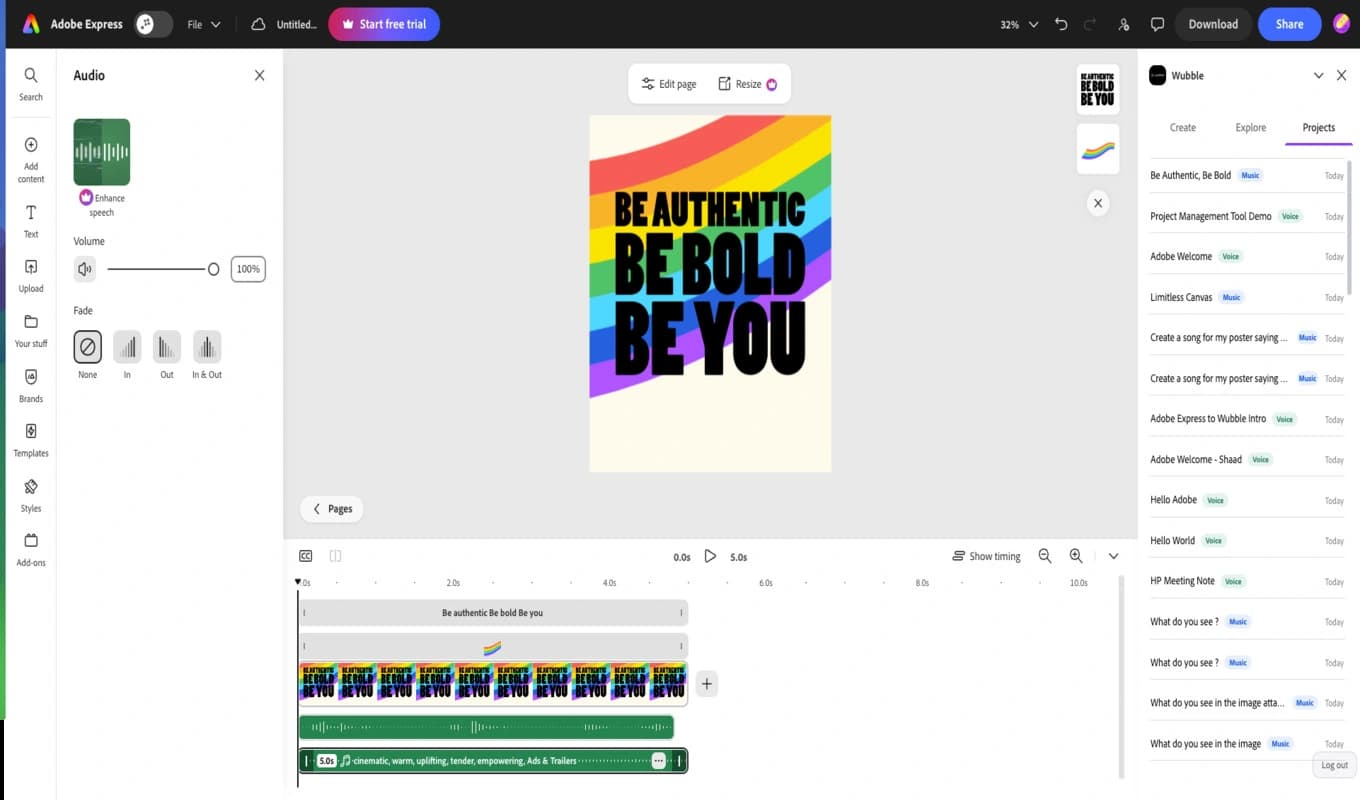
Wubble suggests a warm orchestral bed for this design. The reply is one word: “Yes.” The conversation continues with audio options to preview and insert. The screenshot below shows the next stage, with audio placed on the Adobe Express timeline alongside the visual.
This is the useful part of a conversation: the second request follows the first. A music brief can grow out of the voiceover and the visual, rather than beginning again from an empty search box. Listen to the combination and keep the spoken message clear as you adjust the audio in your project.
Give transitions their own sound
A voice carries the message. Music establishes the mood. A small sound effect can give a particular moment its shape: a soft whoosh as a ribbon moves, or a chime when the final words appear.
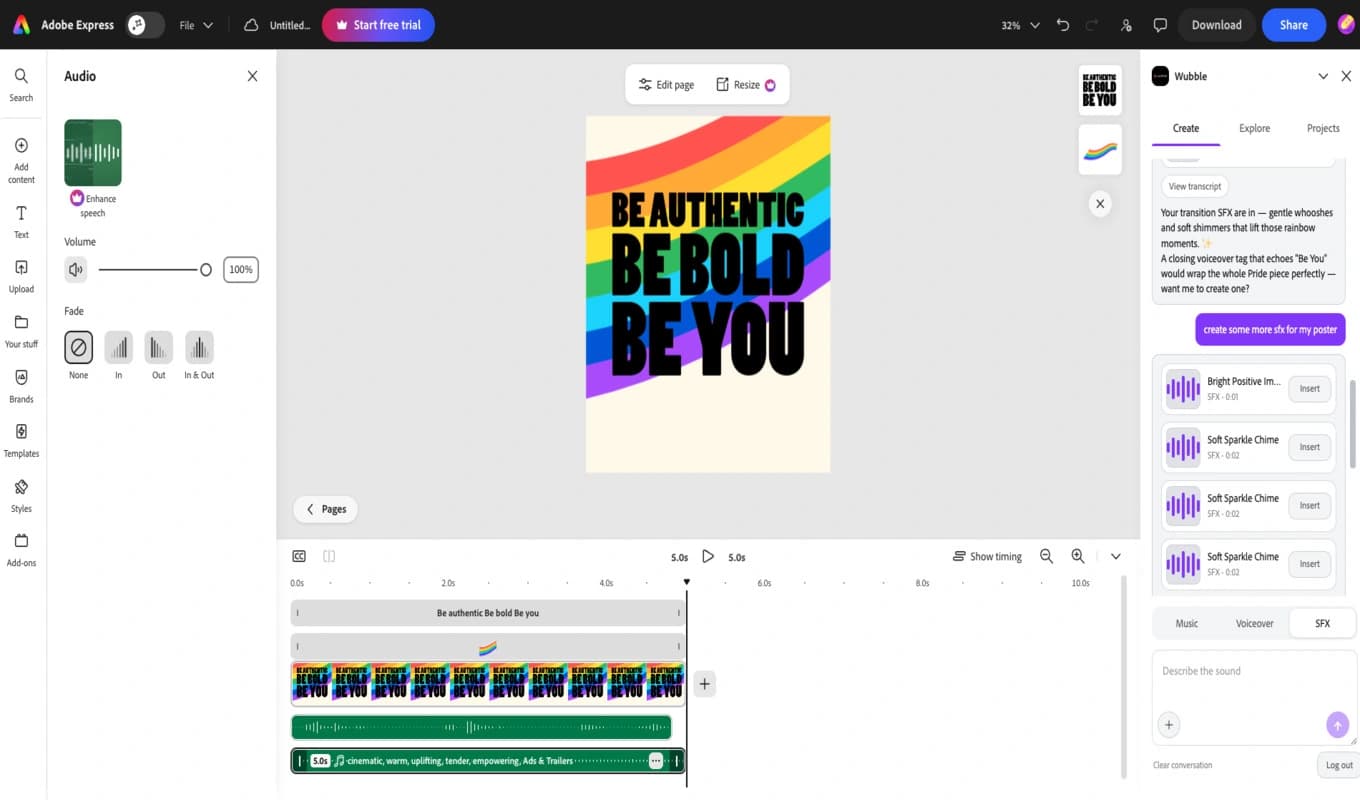
In this example, the next request is “Create some more SFX for my poster.” Wubble returns short sound effects with individual Insert buttons. You can listen to each option and choose where it belongs.
Restraint helps here. A single well-placed effect may do more for the design than a sound on every transition. Play the full sequence to hear whether each addition supports the message.
Explore another direction
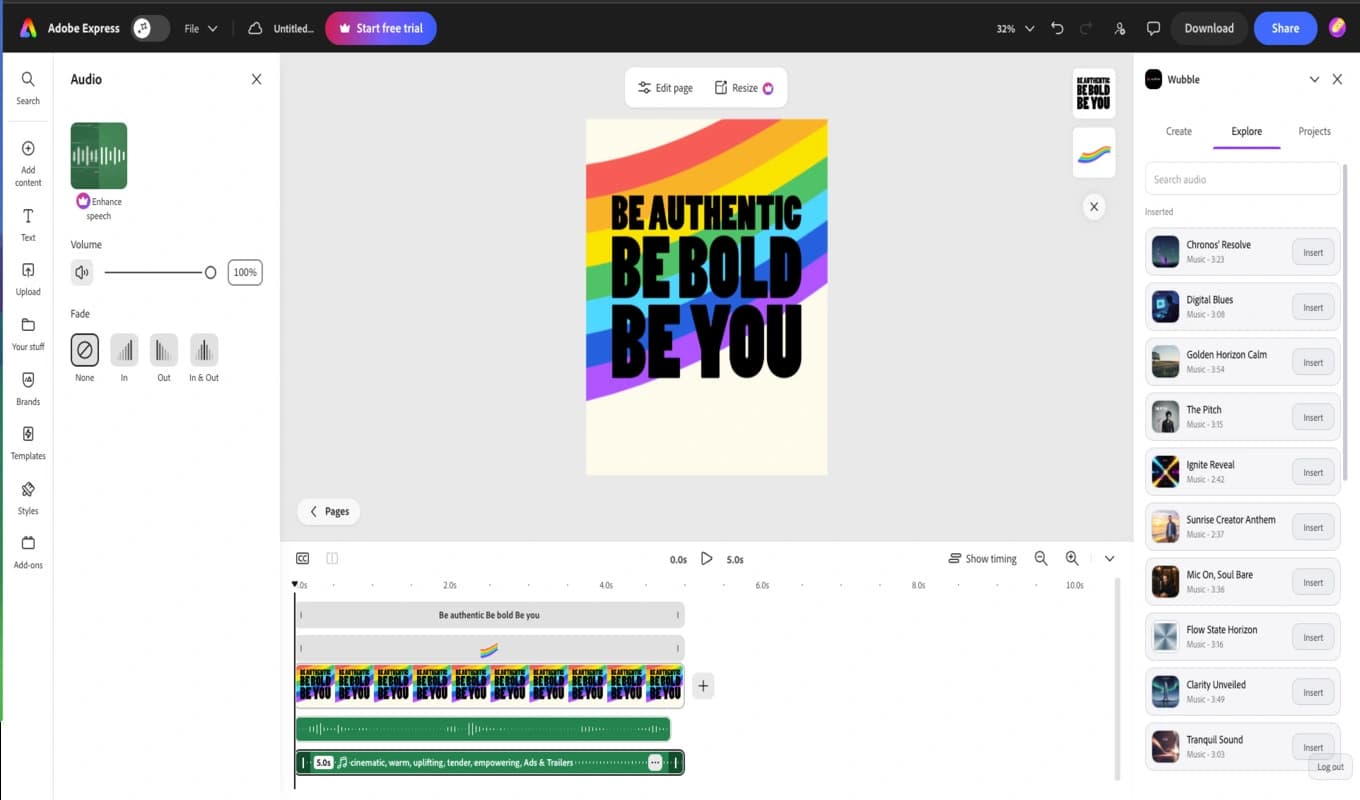
Sometimes you know the mood you want only after hearing it. The Explore tab gives you another way in: browse the Wubble music library, search for audio, preview tracks, and insert a choice into the project.
For this poster, you might compare a gentle instrumental with something more rhythmic. Hearing both against the same design can tell you more than adding another adjective to a brief. The visual remains your reference point.
Pick up where you left off
Creative work rarely happens in one sitting. You may finish the first version today and return tomorrow to make a shorter cut or try a different opening. The Projects tab brings your Wubble projects into view inside Adobe Express, so earlier work is within reach.
The poster is one example. The same way of briefing audio can serve very different projects. Start with what the audience needs to hear, then describe the role of the sound.
| What you are making | A way to start the conversation |
|---|---|
| A product announcement | “Create an upbeat instrumental for this reveal. Build anticipation before the product appears.” |
| An educational explainer | “Create a clear, friendly voiceover for this explanation. Give the main idea room to land.” |
| A creator’s short video | “Make warm background music for this travel sequence, with a gentle lift at the final scene.” |
| A business event invitation | “Create a welcoming voiceover and a short musical introduction for this invitation.” |
These are starting briefs to adapt to your own content. For more ideas, explore Wubble’s AI music tools and our audio workflows for creators.
Get started in Adobe Express
- On desktop, open Wubble’s Adobe Express listing. You can also find add-ons from the left panel of an Adobe Express design.
- Add Wubble, or open it if you have already added it, and sign in to your Wubble account.
- Use Create to describe the music, voiceover or sound effect you need, or Explore to browse audio.
- Preview your choice, select Insert, and play the design back with its new audio.
Adobe’s guide to installing add-ons explains where to find and open them.
Do I need a Wubble account?
Yes. The listing requires a Wubble account and currently offers new accounts 3 generation credits and 3 download/import credits. Continued use requires Wubble credits or a paid plan. Check the listing for the current offer.
Is Wubble included in an Adobe plan?
No. Wubble is sold separately. Billing, cancellation and account management take place on wubble.ai, outside Adobe Express. You can find usage terms in Wubble’s license and get assistance through Wubble support.
Already building presentations too? Wubble is also available for PowerPoint through Microsoft Marketplace.
For your next Adobe Express design, start with one sentence about what it should sound like. Open Wubble in Adobe Express and build from there.